Quickstart
Five minutes from sign up to a running sandbox, desktop and swarm. The first 7 days are free, with up to $20 of usage; see Billing & plans.
1. Sign up
Sign up with Google, GitHub or an email, and verify the email. Your first machine asks for a card, which is not charged during the free trial.
2. Get your API key
The dashboard Home has the key bar at the top: Copy key gives you your Default key, and makes it the first time. Every key and its scopes are under Developers.
export MARITIME_API_KEY=mk_...3. Onboard your agent
Copy the instructions into Claude Code, Cursor or Codex. Your agent reads the docs, uses MARITIME_API_KEY and runs the steps below for you. Every docs page has the same button beside its title, which copies that page.
4. Try one of each
One short example per section. They use the CLI (npm install -g maritime-cli, then maritime login) and the REST API with the same key.
Ephemeral sandboxes: one that runs a command
# start one, ended with its disk 60 minutes from now; the reply carries its "id" (sbx-...)
curl -X POST https://api.maritime.sh/api/sandboxes/ephemeral \
  -H "Authorization: Bearer $MARITIME_API_KEY" \
  -H "Content-Type: application/json" -d '{"name": "job-1", "lifetimeMinutes": 60}'

# run a command in it through the Sandboxes API
maritime sandbox exec SANDBOX_ID -- uname -a
More in Ephemeral Sandboxes; for a machine that keeps its files, see Persistent Sandboxes.
Computers on demand: a Linux desktop and its first screenshot
# get or create the desktop for one of your users
curl -X POST https://api.maritime.sh/api/v1/computers \
  -H "Authorization: Bearer $MARITIME_API_KEY" \
  -H "Content-Type: application/json" -d '{"externalUserId": "u_1"}'
# {"id": "COMPUTER_ID", ...}

curl -H "Authorization: Bearer $MARITIME_API_KEY" \
  https://api.maritime.sh/api/v1/computers/COMPUTER_ID/screenshot -o screen.png
Your model drives it with clicks and keys over MCP or REST; see Linux desktops. The same call with "os": "windows" or "android" starts a Windows desktop or an Android phone where your deployment has hosts for them.
Ephemeral sandboxes: a small swarm
maritime swarms run --count 3 --command 'echo hello from $MARITIME_SWARM_INDEX' --wait
maritime swarms results <swarm_id> -o results.jsonl
Three ephemeral sandboxes run the command at once and are ended when done; see Swarms.
5. How they fit together
A coding agent keeps its repos and tools on a Persistent Sandbox and runs commands there with exec. When a task needs an app with a screen, it calls get_computer over MCP and works on a Linux desktop. For one-off code it starts an ephemeral sandbox, and for a batch, a swarm. Every machine uses the same API key, shows up in Activity and is billed per second on the same invoice.
Or start from the dashboard
- Sign up, or log in.
- In the dashboard, open New sandbox (
/dashboard/new-sandbox). - Name: name the machine, or keep the suggested name.
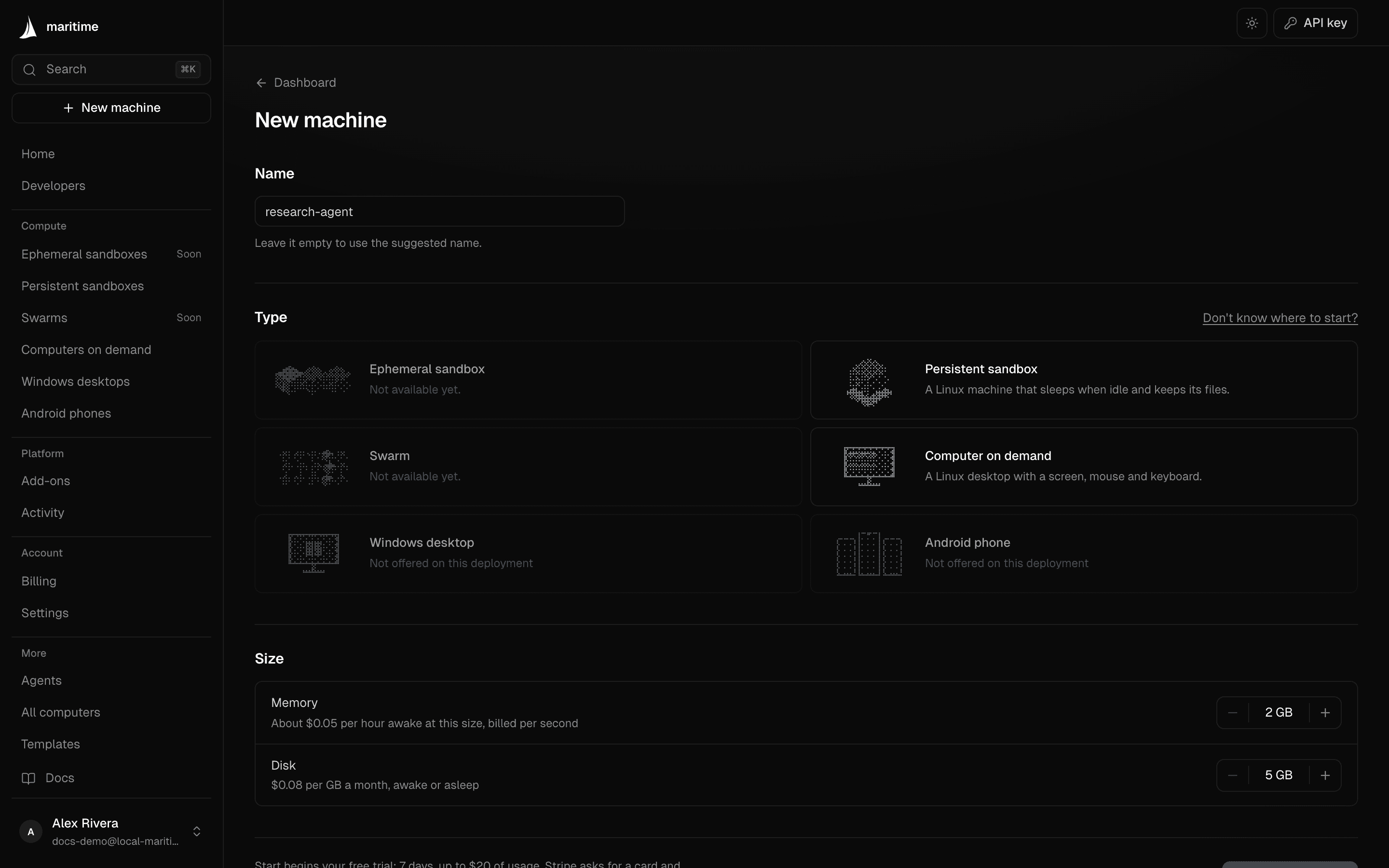
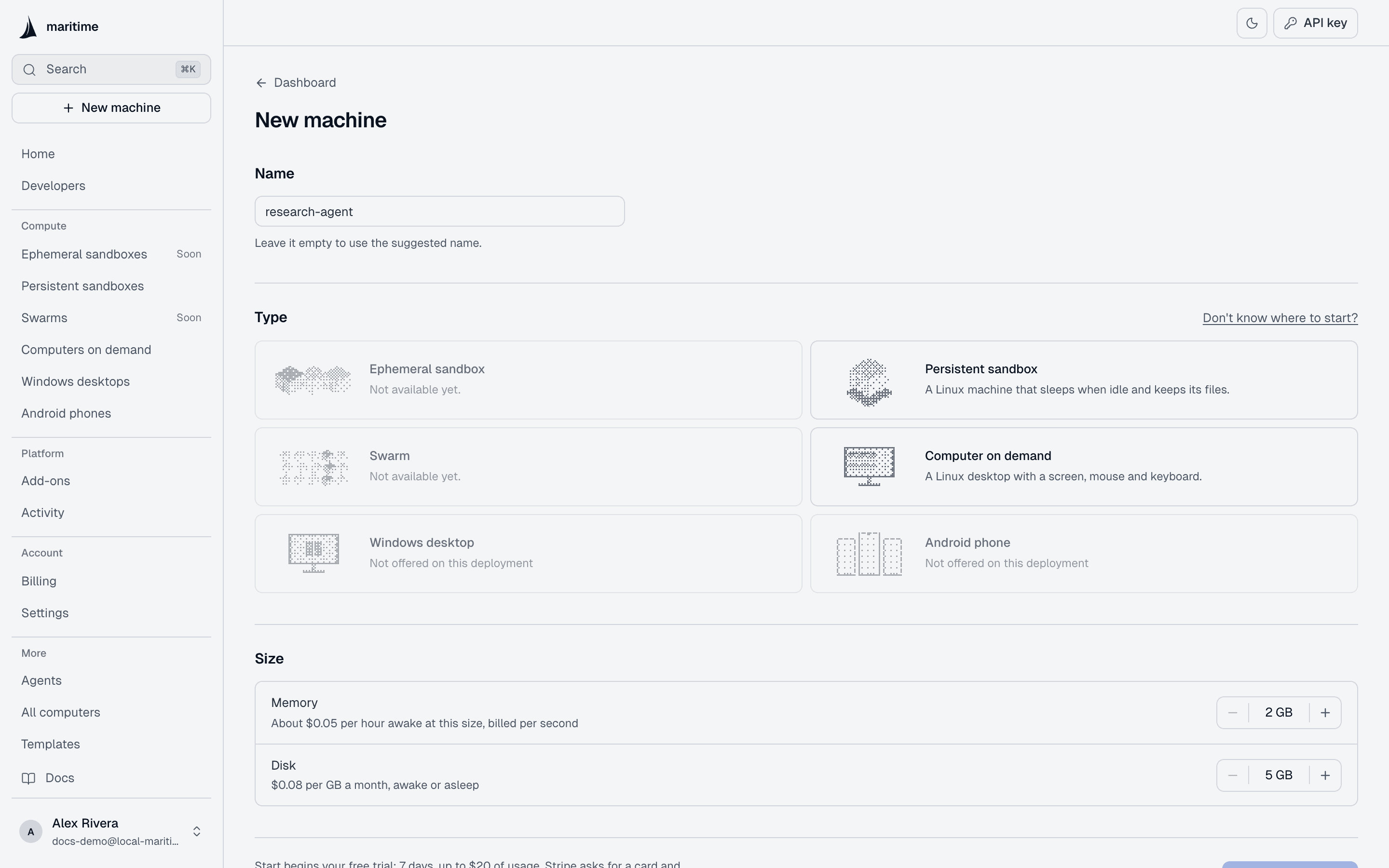
- Type: pick an Ephemeral Sandbox, Persistent Sandbox, Swarm, Linux desktop, Windows desktop or Android phone. Not sure which? Click Don't know where to start? to answer a few questions about what your agent will do and get a recommended type and size.
- Size (sandboxes only): memory and disk. Computers, Windows desktops and phones have one size and skip this step. For an Android phone you choose the processor instead: x86_64 or arm64.
- Click Start. The new machine shows highlighted on its type's page: Persistent Sandboxes, Computers, Windows or Phones. The first time, Start asks for a card, which is not charged during the trial.
Picking Swarm opens the Swarms page, where a run of many sandboxes starts; see Swarms. An ephemeral sandbox started here gets the default lifetime, 60 minutes, then is deleted with its disk; set another lifetime with the API. Internet access, a fixed IP, private networks and other add-ons are set on the machine after it starts.
To preselect the type, link with ?type=: ephemeral, persistent, swarms, computers, windows or android, for example /dashboard/new-sandbox?type=persistent.
An agent from the CLI
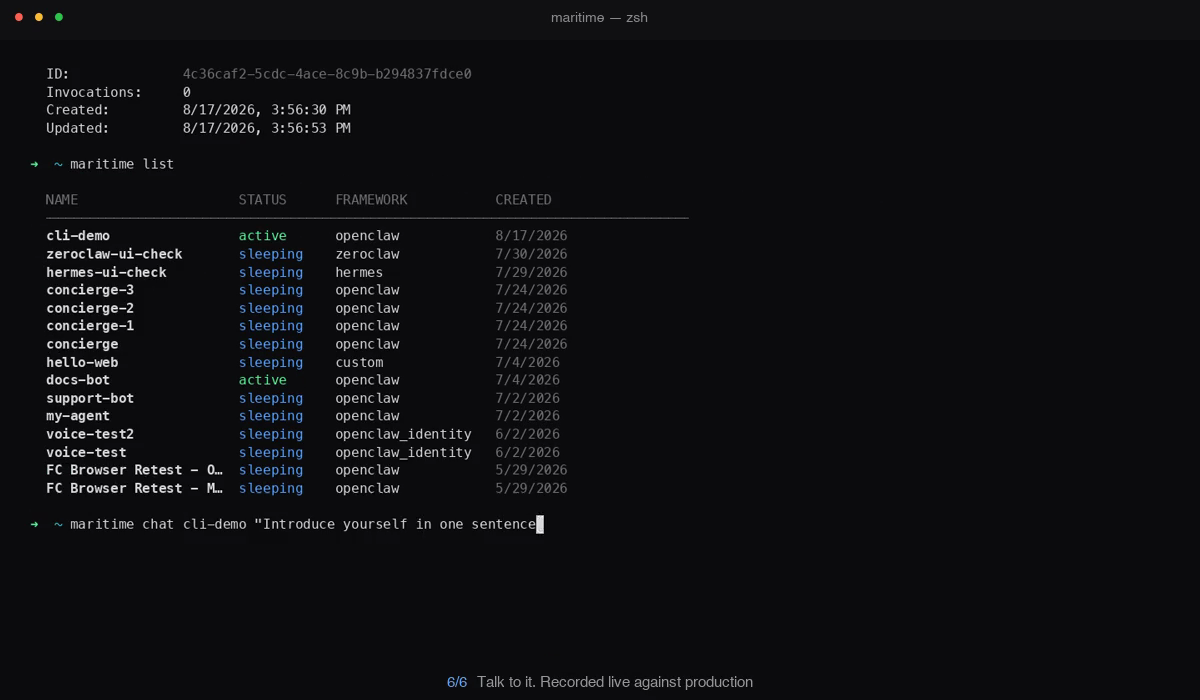
Deploy a ready-made agent and talk to it from the terminal. Everything below also works from the dashboard; the screenshots show the equivalent clicks.
1. Install the CLI
npm install -g maritime-cliRequires Node.js 18 or later. Prefer clicking? Skip the CLI entirely and do all of this from the dashboard.
2. Sign in
Log in with your Maritime account (opens your browser), or create one:
maritime login

# No account yet?
maritime signup
3. Pick a template
Templates are complete, working agents: pick one and it deploys pre-configured. Not sure which? Choose a framework compares them; openclaw is the general-purpose default.
maritime templates

# Output:
# NAME                FRAMEWORK    DESCRIPTION
# OpenClaw Agent      openclaw     Autonomous AI agent with 100+ skills.
# Hermes Agent        hermes       Self-improving Python agent with memory.
# ZeroClaw Agent      zeroclaw     Ultra-lightweight Rust agent.
# Claude Code         custom       Coding agent with real tools in a persistent workspace.
# DeepSeek Harness    dsh          Plugin-based harness with a full web workbench.
# ...
--template takes the template id (openclaw, hermes, zeroclaw, claude_code, dsh), not the framework column; the ids are listed on Choose a framework.
4. Create the agent
One command creates and deploys it; there is no separate deploy step. It flips to active in under a minute:
maritime create my-agent --template openclaw

maritime status my-agent   # wait for status: active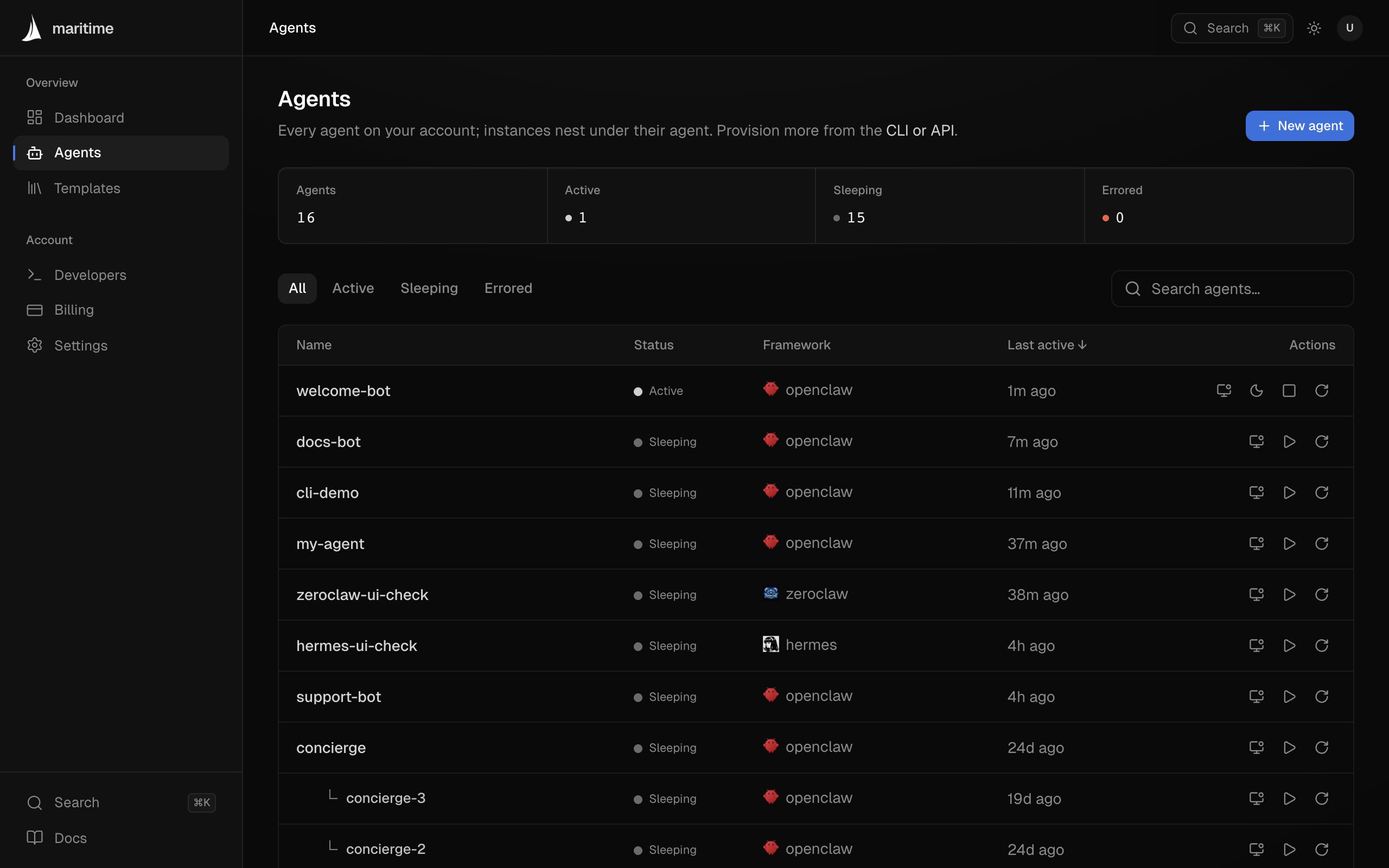
5. Talk to it
This is the whole point. Sleeping agents wake on their own, and the call waits for the reply:
maritime chat my-agent "introduce yourself and list three things you can do"The OpenClaw template routes through Maritime's model proxy by default, which is paid from prepaid AI credits, separate from your plan. Plans include none, so add AI credits on the Billing page first, or set your own OpenAI key (step 6). The same chat works from the agent's page in the dashboard.
6. Add keys & config (optional)
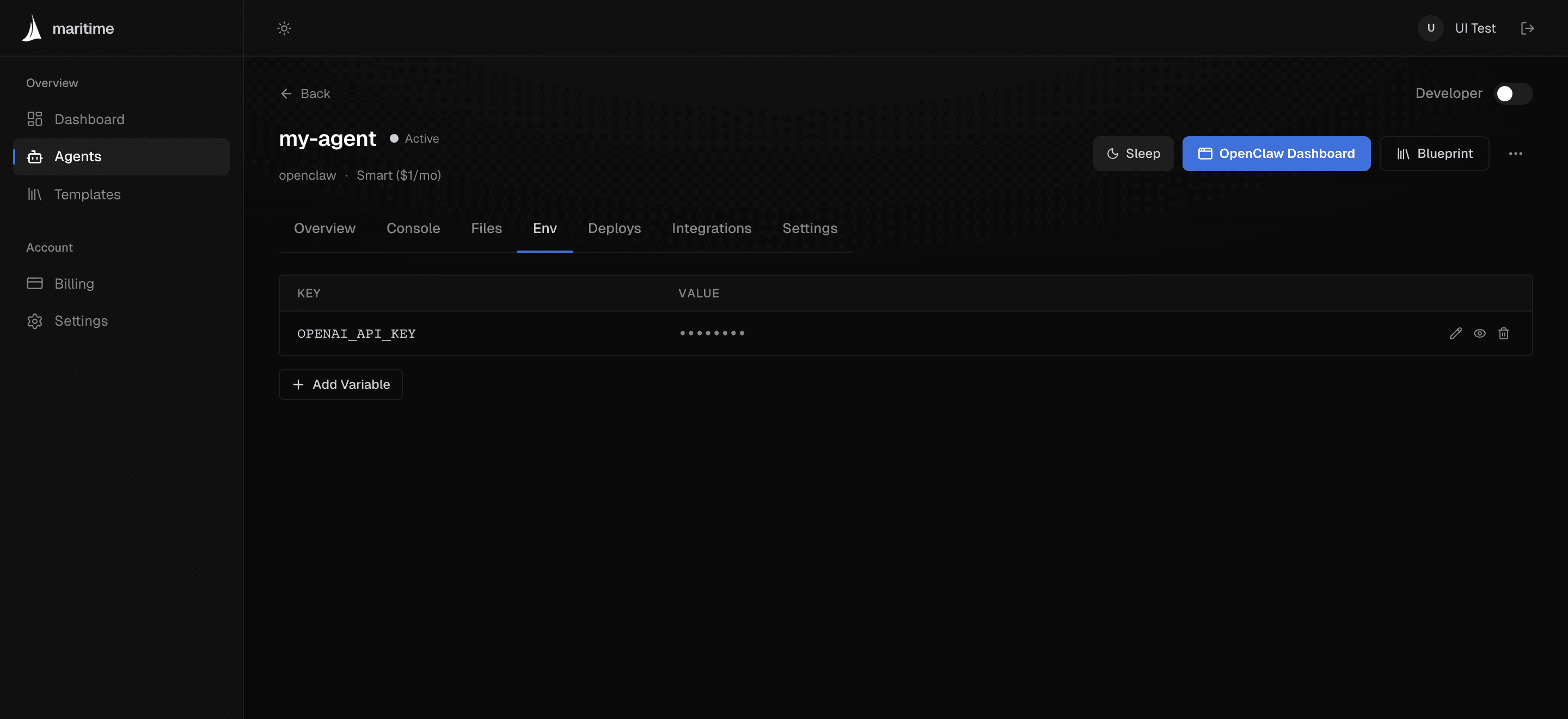
Bring your own model key to pay your provider directly instead of using the proxy, or add any other credentials your agent needs. Variables are secret by default: encrypted at rest, masked in the UI.
maritime env set my-agent OPENAI_API_KEY=sk-... --reloadOne exception to know: the Claude Code template always needs your own ANTHROPIC_API_KEY (the proxy speaks the OpenAI format, which Claude Code does not use). Details in Env vars & sizing.
7. See what it's doing
maritime logs my-agent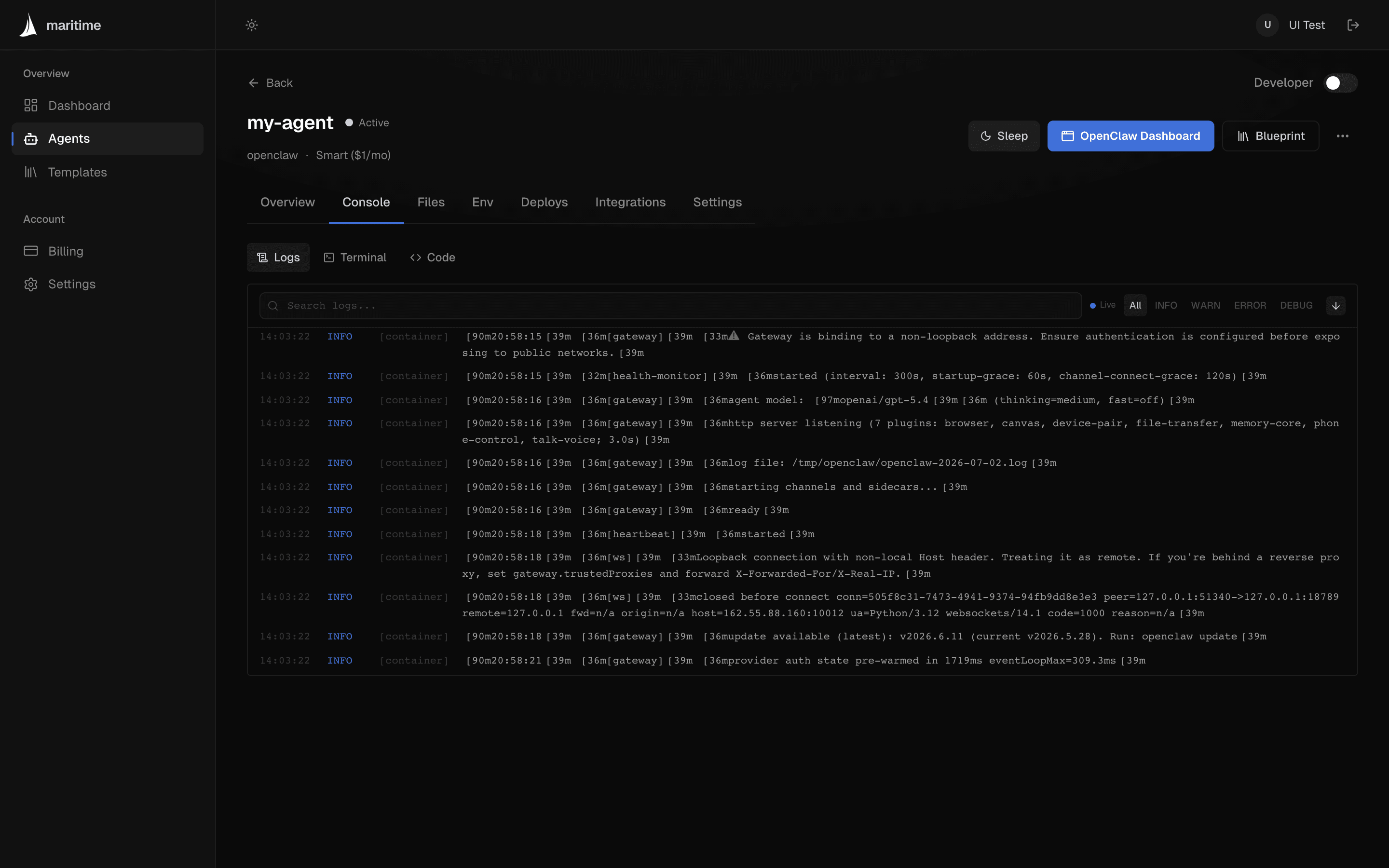
Shipping a web app instead?
Any repo with a Dockerfile can be served on a public, no-login URL that sleeps when idle and wakes on the next visit:
maritime create my-app --repo https://github.com/you/app --public --port 3000See Public web agents for the full picture, or Deploy any container to make your own code a chattable agent.
What happens next?
Your agent auto-sleeps when idle and wakes on the next message, trigger, or webhook; you never manage that. It is billed per second while awake; asleep, you pay only for its disk. Park it deliberately with maritime sleep my-agent whenever you like.